
← Back to our services

Computer Repair & Second Life

More life for the
computer you already own.

Before you replace it, explore your options. Repair, the right upgrade, or a fresh start with Linux could make your computer useful again.

Save money. Reduce e-waste. Keep computing.

Computer Repair

Tell us what you notice.
We’ll help with the next step.

No technical vocabulary needed. Choose the problem that sounds closest.

Diagnostics & Performance

A slow computer needs a diagnosis—not a guess.

Startup apps, limited storage, memory pressure, and hardware problems can feel similar. We check the cause before suggesting a cleanup or upgrade.

What we look at

  • When the slowdown happens
  • Apps, storage, and memory use
  • Whether cleanup, repair, or parts make sense
Discuss This Problem

A starting point for a conversation, not an online diagnosis.
Virus & Malware Removal

Unwanted pop-ups? Start by finding the source.

Suspicious alerts can come from malware, unwanted apps, or browser settings. We investigate, address identified issues, and review protection settings.

What we look at

  • Unexpected apps and browser changes
  • Detected threats and unwanted software
  • Practical prevention and safer settings
Discuss This Problem

A starting point for a conversation, not an online diagnosis.

Cleaning & Cooling Care

Hot computer. Loud fan. A problem worth checking.

Dust and cooling problems are possible causes—not the only ones. We inspect the symptoms and discuss suitable cleaning or repairs for your model.

What we look at

  • Fan, vent, and airflow condition
  • When heat or noise becomes a problem
  • Model-specific access and service options
Discuss This Problem

A starting point for a conversation, not an online diagnosis.

Cleanup & File Organization

Make room without guessing what to delete.

Find out what is using your storage and decide how to organize the files you want to keep. Nothing is removed without your approval.

What we look at

  • Large files, unused apps, and storage use
  • What to keep, back up, or move
  • Whether more storage is actually needed
Discuss This Problem

A starting point for a conversation, not an online diagnosis.

Software Setup & Tune-Ups

Make everyday apps and settings less frustrating.

Review apps that open automatically, update problems, installation issues, and settings around your actual needs.

What we look at

  • Unnecessary startup and background apps
  • Software errors and update issues
  • Useful apps and security settings to retain
Discuss This Problem

A starting point for a conversation, not an online diagnosis.

Startup & System Repair

Crashes or a computer that won’t start?

We troubleshoot the cause and explain whether software repair, hardware attention, or another option makes sense. File needs are discussed before major changes.

What we look at

  • What happens when you switch it on
  • Recent changes and error messages
  • Backup needs before drive or system work
Discuss This Problem

A starting point for a conversation, not an online diagnosis.

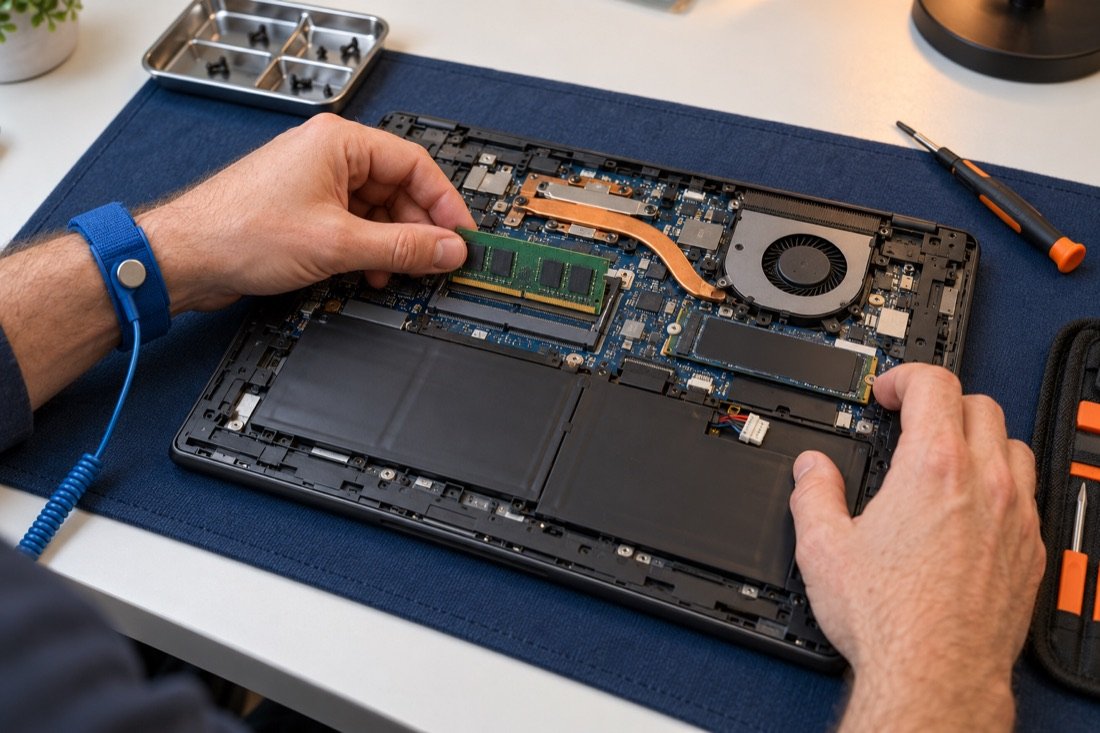
Hands fitting a memory module inside an opened laptop on a repair bench.

Care for the Computer You Own

A clear explanation.
A practical plan.

Review the repair options, cost, and what happens to your files before work begins.

Repair, an SSD or RAM upgrade, and a suitable Linux setup are different options—not automatic recommendations.

02 / PC Upgrades

Small changes can make a big difference.

An upgrade should solve a real bottleneck. We check compatibility, condition, and cost before recommending parts.

Storage

A faster drive

A solid-state drive (SSD) replaces a traditional spinning hard drive. When storage is the bottleneck, it can help your computer start and open applications more quickly.

Your files and the transfer or reinstall plan are discussed before the drive is changed.

Memory

More room to work

RAM is the short-term workspace your computer uses for open apps and browser tabs. More can help when it is running out of memory.

Some computers have memory that cannot be upgraded. We check your exact model first.

System care

A cleaner, healthier setup

Startup clutter, software problems, and cooling issues can make a computer frustrating to use. The right fix depends on the cause.

Windows and Linux options are considered around your needs. New parts are not always the answer.

Tux, the Linux penguin

03 / Linux & Second Life

Meet Linux. A fresh start for your computer.

Free & open source. Lightweight options. More possibilities.

What is Linux?

Linux is a free, open-source operating system. It runs your computer, opens apps, manages files, and connects to the internet.

Linux comes in different versions. Linux Mint is one familiar example; Ubuntu and other options offer different desktops and features.

Why can it feel faster?

A lightweight Linux setup can use less memory and processing power. On a compatible computer, that can leave more resources for your apps and help the computer feel faster.

The best option depends on your hardware and what you use. We check your needs before recommending a change.

Free software. Practical help.

Linux offers free operating-system options. Assessment, installation, setup, and help getting started are service work; costs are explained in your quote.

Curious, but unsure? On compatible computers, a live USB lets us demonstrate Linux and test key hardware before deciding on installation.

Ask whether Linux could fit
Curious about Linux?

Choose a desktop and take a look around.

Ubuntu · GNOME desktop example
Try Firefox, Files, or Show Applications.

Simulated desktop examples. Your files and computer settings are not accessed.

Tux artwork: Larry Ewing (lewing@isc.tamu.edu) and The GIMP.

A Clear Next Step

From “can it be saved?” to a practical plan.

  1. 1

    Tell us about it

    Share the model, symptoms, the apps you use, and what you want the computer to do.

  2. 2

    Review the options

    Discuss repair, upgrades, Linux, or replacement based on the machine and your budget. Approve a quote before work begins.

  3. 3

    Plan for your files

    Agree on backup and transfer needs before changes are made. Installation or drive work starts only after the data plan is clear.

  4. 4

    Get comfortable

    Review the completed setup and learn the basics of your apps, updates, and backups so you can keep using it with confidence.

Common Questions

A few things you might be wondering.

Do I have to switch to Linux?

No. The recommendation starts with your needs. Repair or an upgrade with a supported Windows setup may be the better choice. Linux is one option, not a requirement.

Will all my Windows programs work?

Not necessarily. Some apps have Linux versions, some work in a browser, and others need an alternative. Programs, games, and work requirements are checked before recommending a move.

Will I still have my photos and documents?

We discuss which files matter, backup options, and what can be transferred before work begins. Do not erase the computer or reinstall anything to prepare it; let us review the data plan first.

Can every old computer be given a second life?

No. Hardware condition, compatibility, repair cost, and your needs all matter. Sometimes replacement makes more sense. The assessment helps you choose where to spend your money.

How much does it cost?

The cost depends on the work and any parts needed. Describe your computer and your goal to start a quote. Any assessment charge and the proposed service scope will be discussed before you agree to proceed.

Let’s see what your computer can still do.

Tell us its model, what is happening, and what you need it for.

Serving Salt Lake Valley, Utah Valley, Park City, Heber City / Wasatch Back, and surrounding areas. Farther travel by arrangement.